letX connector
Use letX inside Claude
Give Claude real LaTeX hands: compile to PDF, browse templates, and edit your letX projects from claude.ai.
Listed in Claude’s connectors directory. Connecting needs a paid letX plan: Pro, Academic Pro, or a seat on a Team.
Pro is $18 a month, Academic Pro $9 a month for verified students, faculty and staff, and a Team seat $20 a month. See the plans
- 1
Open Connectors in Claude
In claude.ai or the Claude desktop app, go to Customize → Connectors and choose Discover, or press + in a chat, then Add connector → Browse connectors. On a Team or Enterprise plan an Owner adds letX for the organization first; a member who cannot add connectors sees Request instead, which asks the Owners.
- 2
Find letX
Search for LetX and open LetX LaTeX Editor, or go straight to its page in the directory. It carries the Community label, which means Anthropic screened it before listing it.
- 3
Press Connect to Claude
Claude reminds you that Community connectors have not been reviewed in depth, then opens the letX sign-in page: in the same tab on claude.ai, or in your browser from the desktop app.
- 4
Sign in, or make an account
If you are not already signed in to letX, this is where you land. Use Google or GitHub, or fill in the form. Already have an account? Press Sign in at the top. Connecting needs a paid letX plan (Pro, Academic Pro, or a seat on a Team); on a free account the next screen says so and links to the plans.
- 5
Allow access
Last screen. Read what Claude is asking for, then press Allow access. letX never hands over your password, and you can disconnect later from Settings → Connected apps.
- 6
Turn it on in a chat
letX now shows under Your connectors as Connected. In a chat, press +, open Connectors and check letX is switched on. Then ask Claude to “compile this LaTeX”, “start my thesis from a university template”, or “read main.tex in my paper project and fix the references”.
Adding it by URL instead
The same server also works as a custom connector, for example where an organization keeps its own list. These are the clicks.
- 1
Open the connector picker
In any Claude chat, click + next to the message box, then Add connector → Add custom connector. You can also start from Customize → Connectors.
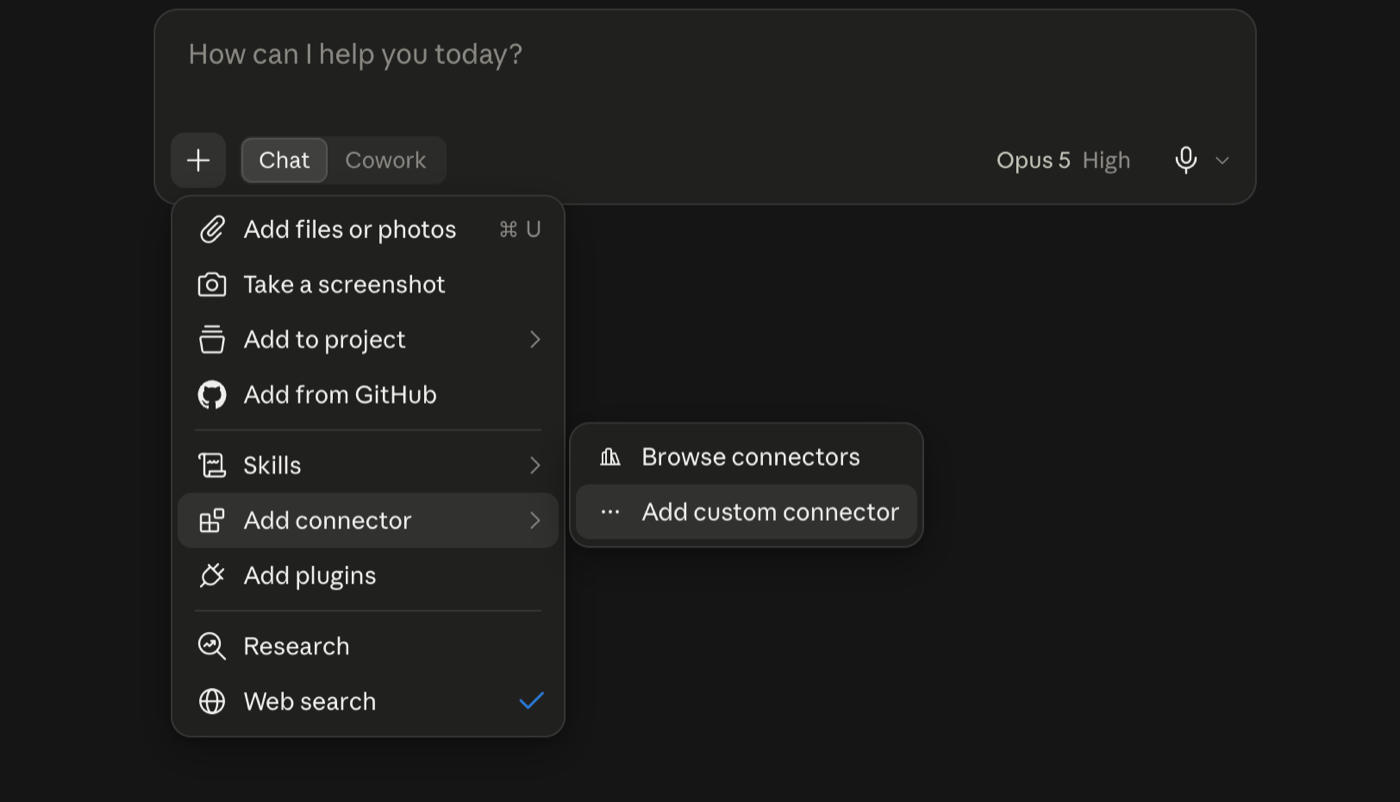
1 the + button. 2 Add connector. 3 Add custom connector. - 2
Name it and paste the letX URL
Call it letX, put
https://api.letx.app/mcpin the address field, and press Continue.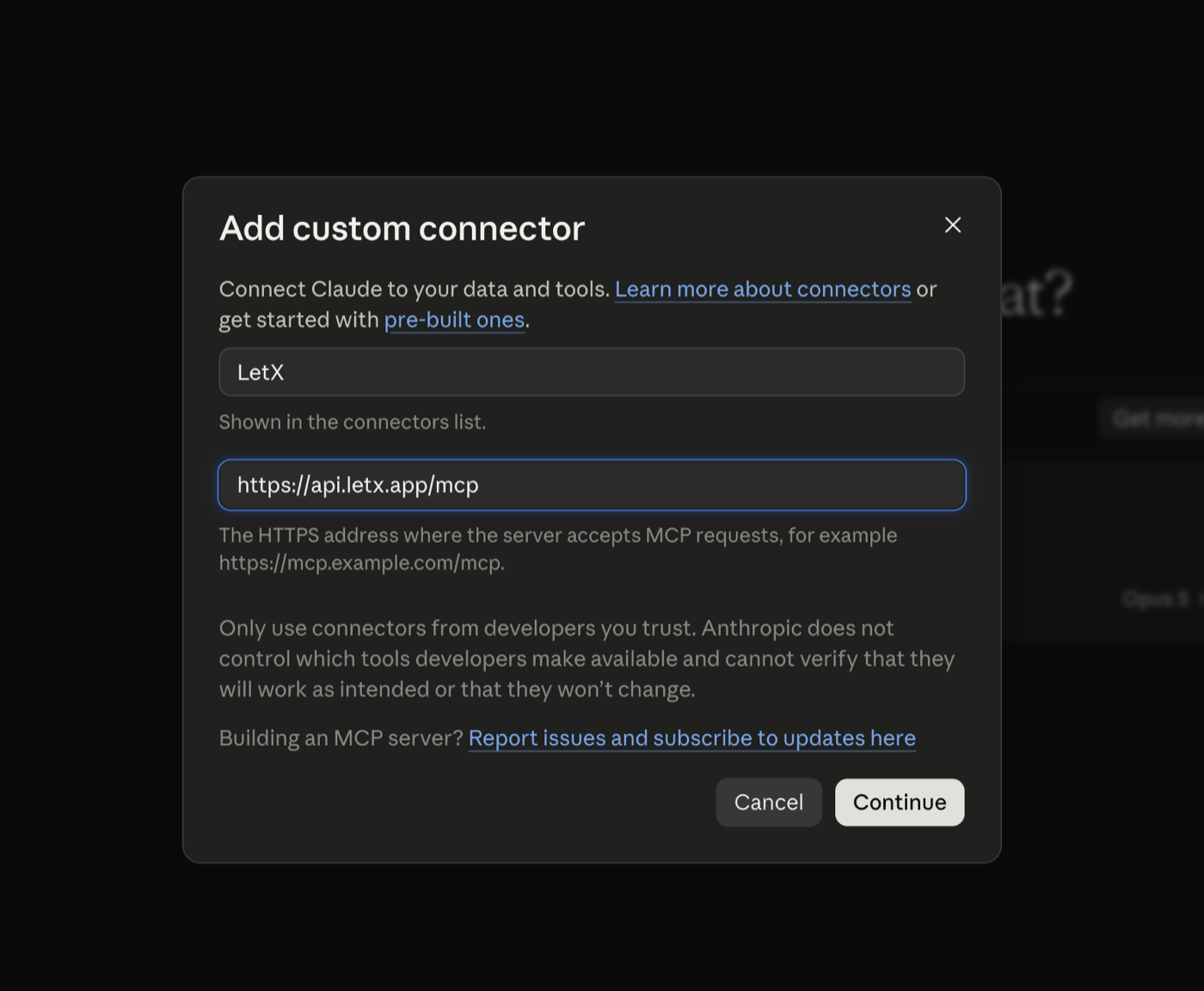
1 the name shown in your connectors list. 2 the letX server address. 3 Continue. - 3
Keep the settings Claude detected
Leave Authentication on Always required and OAuth client on Use Anthropic’s hosted client metadata. Both are marked Detected because letX advertises them, so there is nothing to work out. Add no request headers, then press Add.
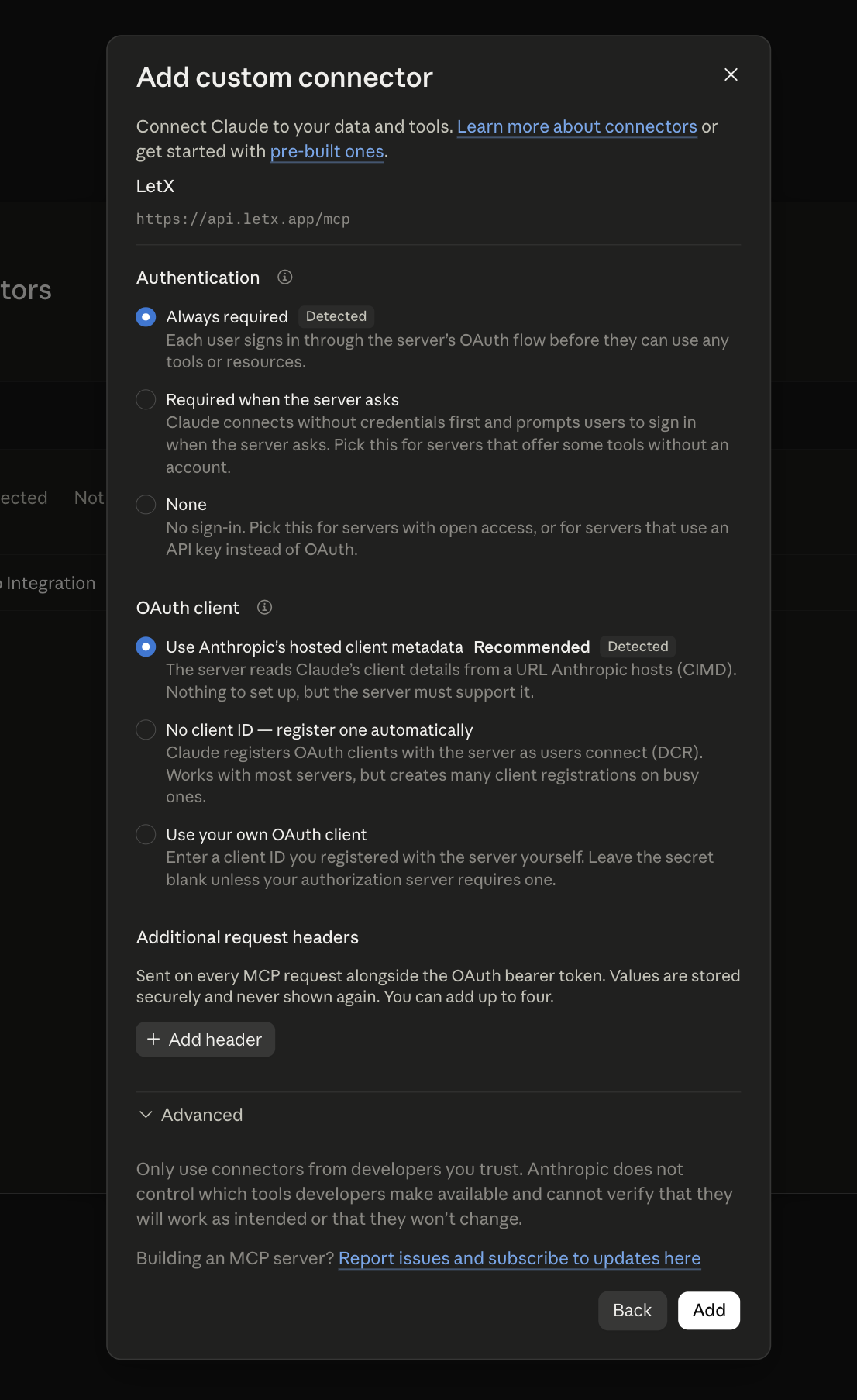
1 Always required. 2 Anthropic’s hosted client metadata. 3 Add. Leave request headers empty. - 4
Press Connect
Adding it does not sign you in. Claude shows the letX card with a Connect button, so press that.
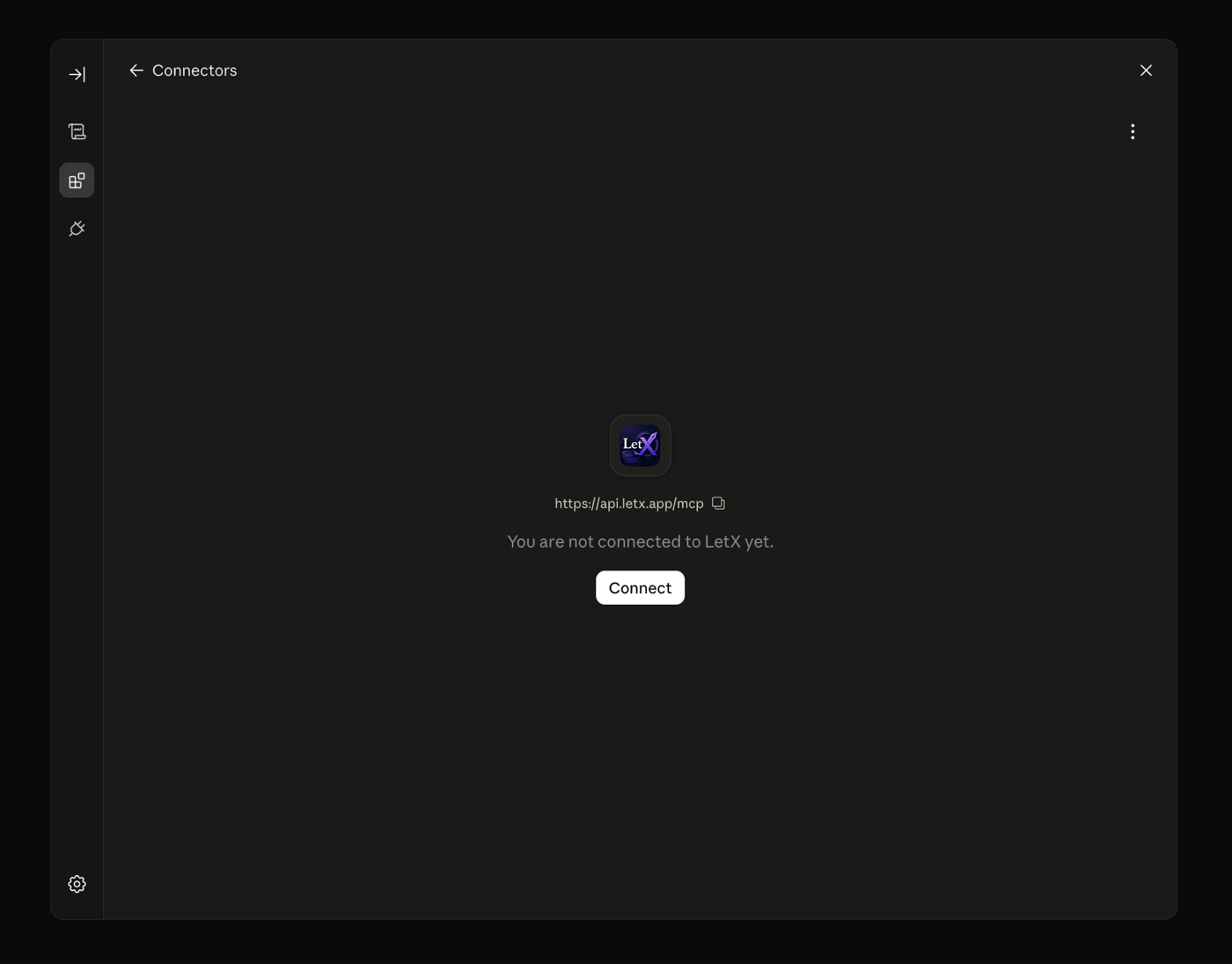
Connect, on the letX card.
Then sign in and allow access exactly as in steps 4 and 5 above.
What Claude can do with letX connected
- Compile LaTeX → PDF on a real TeX Live farm
- Search 1000+ free LaTeX templates
- Start projects from any template
- Read & edit your project files
- See compile errors and fix them itself
- Hand off to the letX editor anytime
Frequently asked questions
Do I need a paid plan?
On letX, yes. Connecting Claude is part of letX’s paid plans (Pro, Academic Pro, or a seat on a Team). A free account is stopped at the consent screen with a link to the plans. Compiles that Claude runs count against your letX plan like any other.
Is letX in Claude’s connectors directory?
Yes, listed as LetX LaTeX Editor at https://claude.ai/directory/letx. The directory listing and a custom connector added by URL reach the same server, https://api.letx.app/mcp, with the same thirteen tools.
Which permissions does Claude get?
Only what you approve: template browsing, project read/write, and compiling. Every file edit keeps the previous version in letX’s history, and you can disconnect anytime from Settings → Connected apps.
Why does Claude show a warning before I connect?
letX is listed with the Community label, which means Anthropic screened it before listing it but has not reviewed it in depth, and Claude shows that reminder for every Community connector. A connector added by URL gets a similar warning, because Anthropic has not reviewed custom connectors at all. Either way it is a prompt to check who runs the server before you connect it.
Does this replace the letX editor?
No. It complements it. Claude is great for drafting and fixing; the letX editor adds live PDF preview, real-time collaboration, and SyncTeX navigation. Every project Claude touches links straight into the editor.